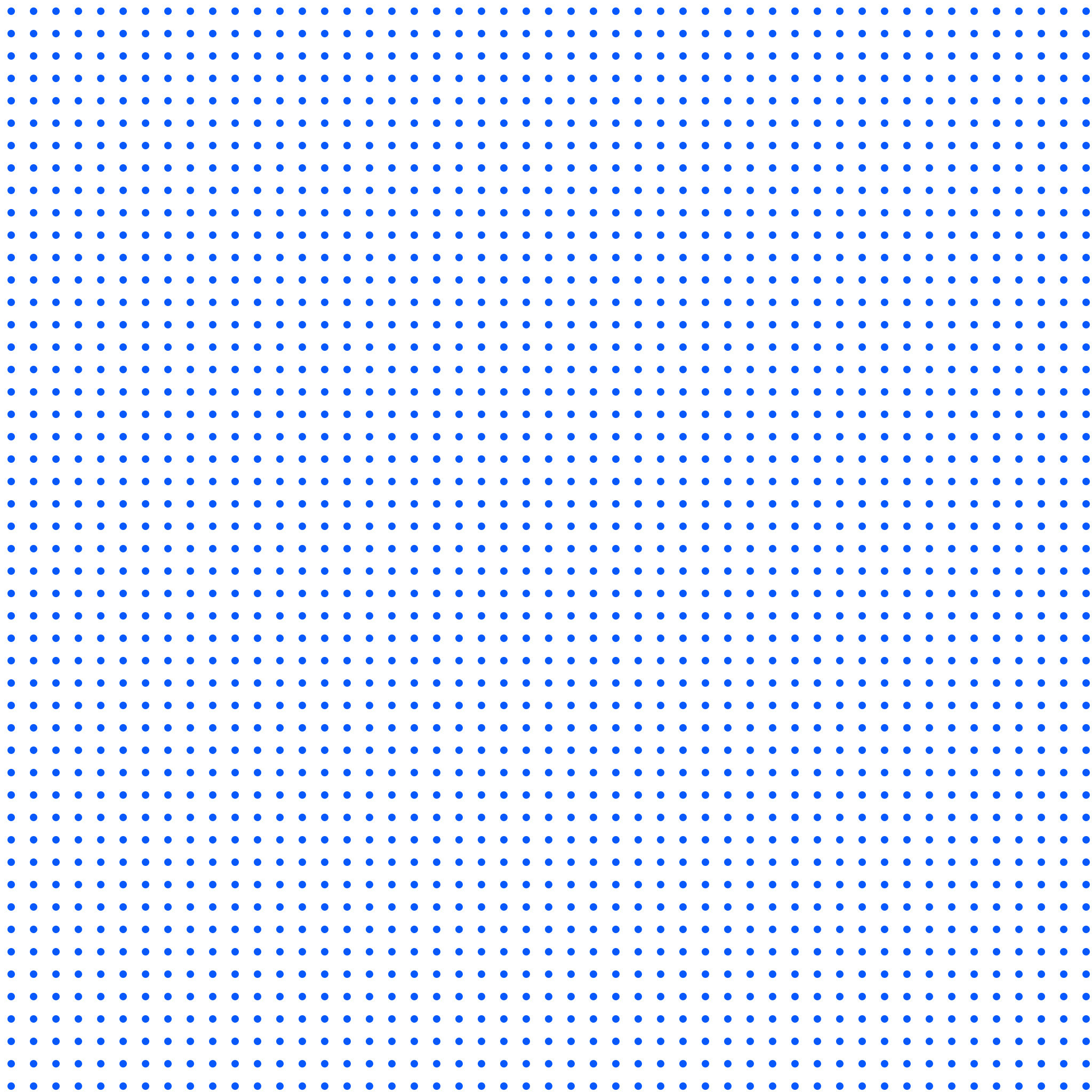
 Round dots
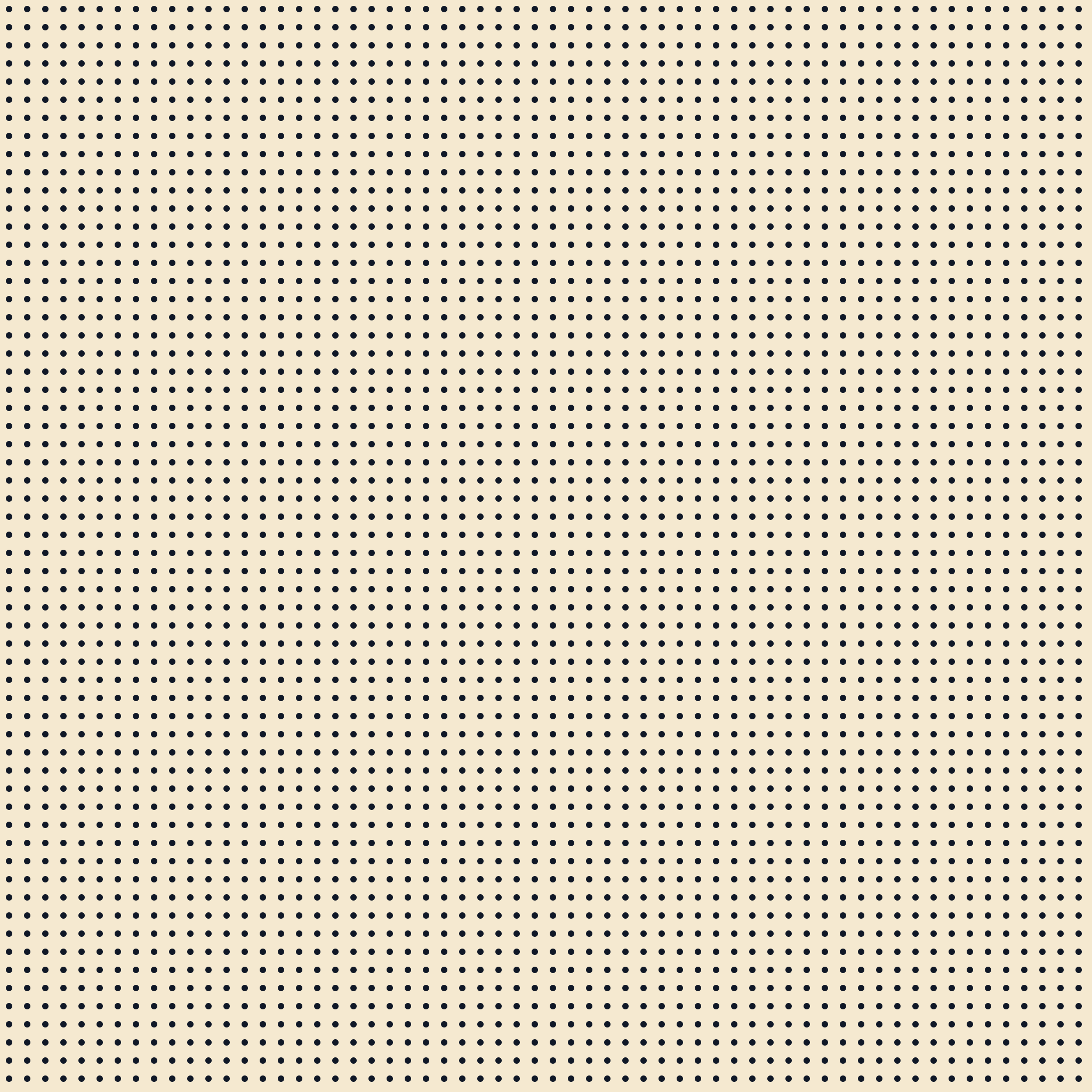
 · 26 px
Ready-to-place raster texture with known dimensions.
2048 × 2048 px · Transparent
PNG: 66.1 KiB
26 px spacing · 12% geometric coverage
Choose the file specification · 8 distinct patterns
Use this page when you know you need a PNG and want the right dimensions and background. Choose 1024 or 2048 pixels, filter transparent or cream-backed designs, and check the actual file size before downloading. For comparing dot styles, use Dots; for testing a layer on a photo, use Overlay.
The formats overlap, but each collection supports a different next step. Choose by the decision you need to make.
Start here when you want to choose how the dots look. Compare four transparent round-dot textures and two cream-backed diamond patterns, then download PNG for placement or SVG for editing. For layering on a photo, use the overlay preview; for a specific pixel size, use the PNG collection.
Add a layer to artworkUse this page when you already have a photo or design and want to add a dot texture. Try dark or white dots on the sample portrait, adjust opacity, and download the transparent layer. For choosing shapes, browse Dots; for choosing pixel dimensions, browse PNG.
You are hereUse this page when you know you need a PNG and want the right dimensions and background. Choose 1024 or 2048 pixels, filter transparent or cream-backed designs, and check the actual file size before downloading. For comparing dot styles, use Dots; for testing a layer on a photo, use Overlay.
Preview, choose, download
The previews show the original artwork. Download the full-resolution PNG for your design.
Round dotsReady-to-place raster texture with known dimensions.
2048 × 2048 px · Transparent
PNG: 66.1 KiB
26 px spacing · 12% geometric coverage
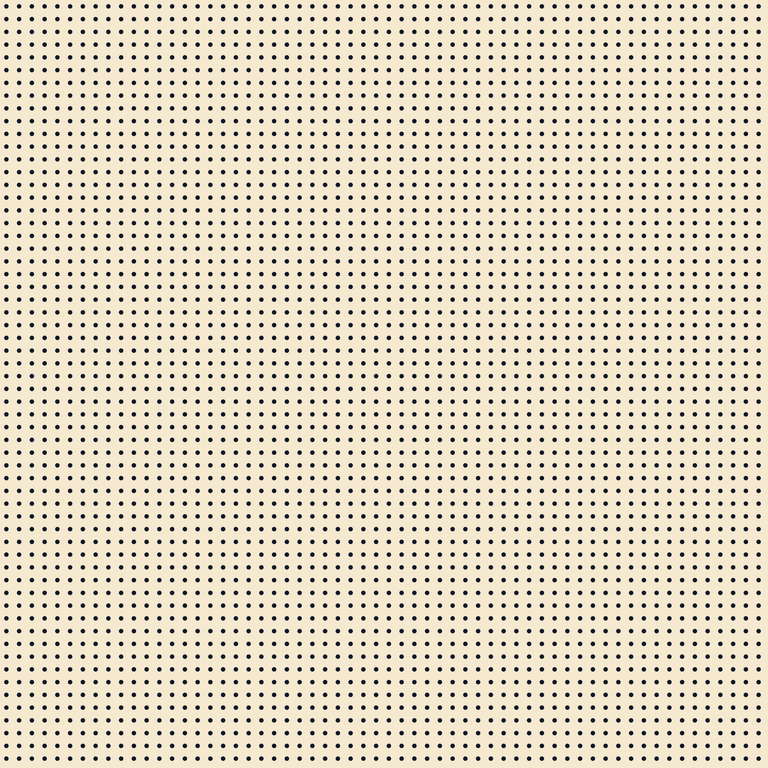 Round dots
Ready-to-place raster texture with known dimensions.
2048 × 2048 px · Cream background
PNG: 112.0 KiB
34 px spacing · 10% geometric coverage
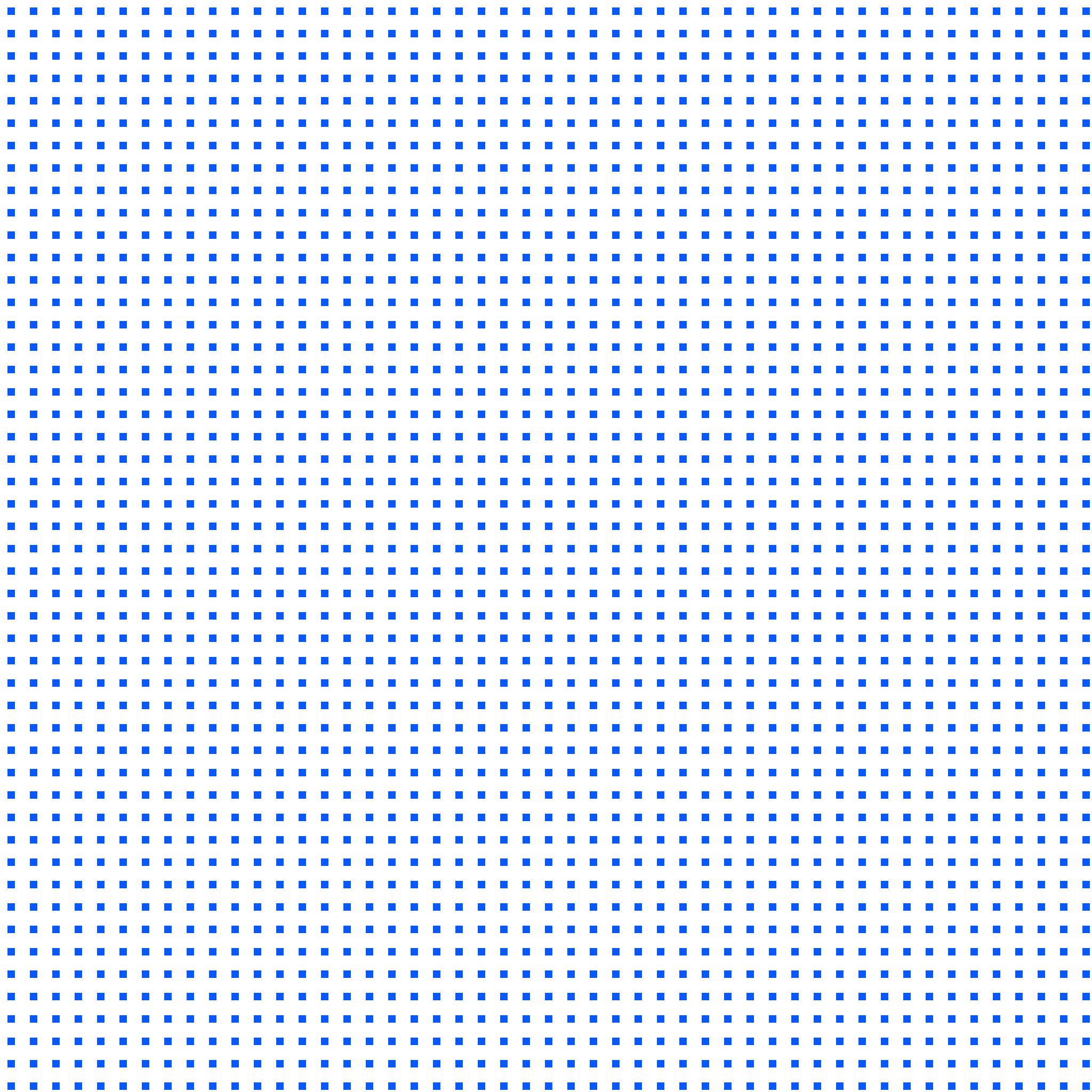
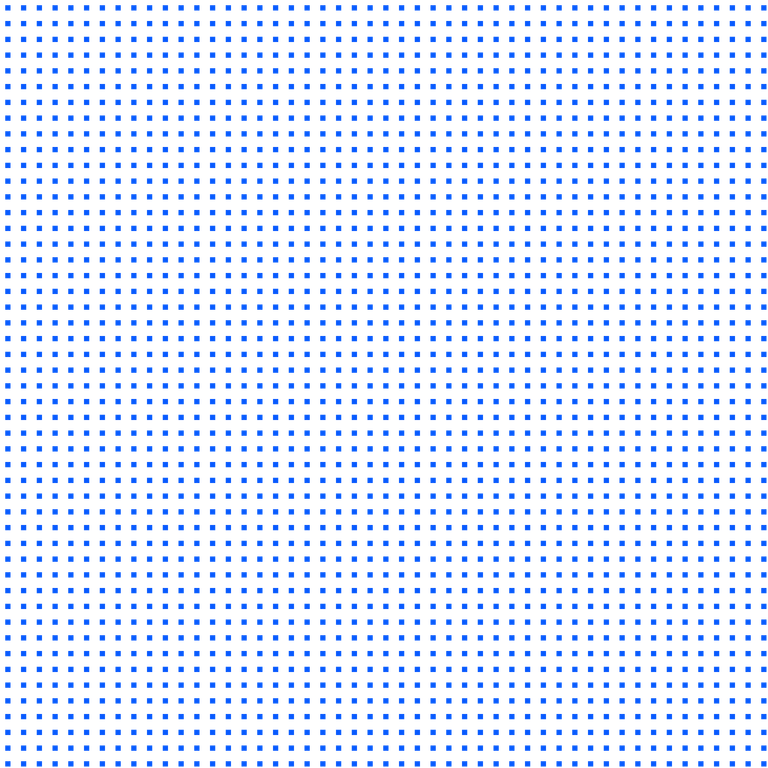 Square
Ready-to-place raster texture with known dimensions.
2048 × 2048 px · Transparent
PNG: 53.9 KiB
42 px spacing · 11% geometric coverage
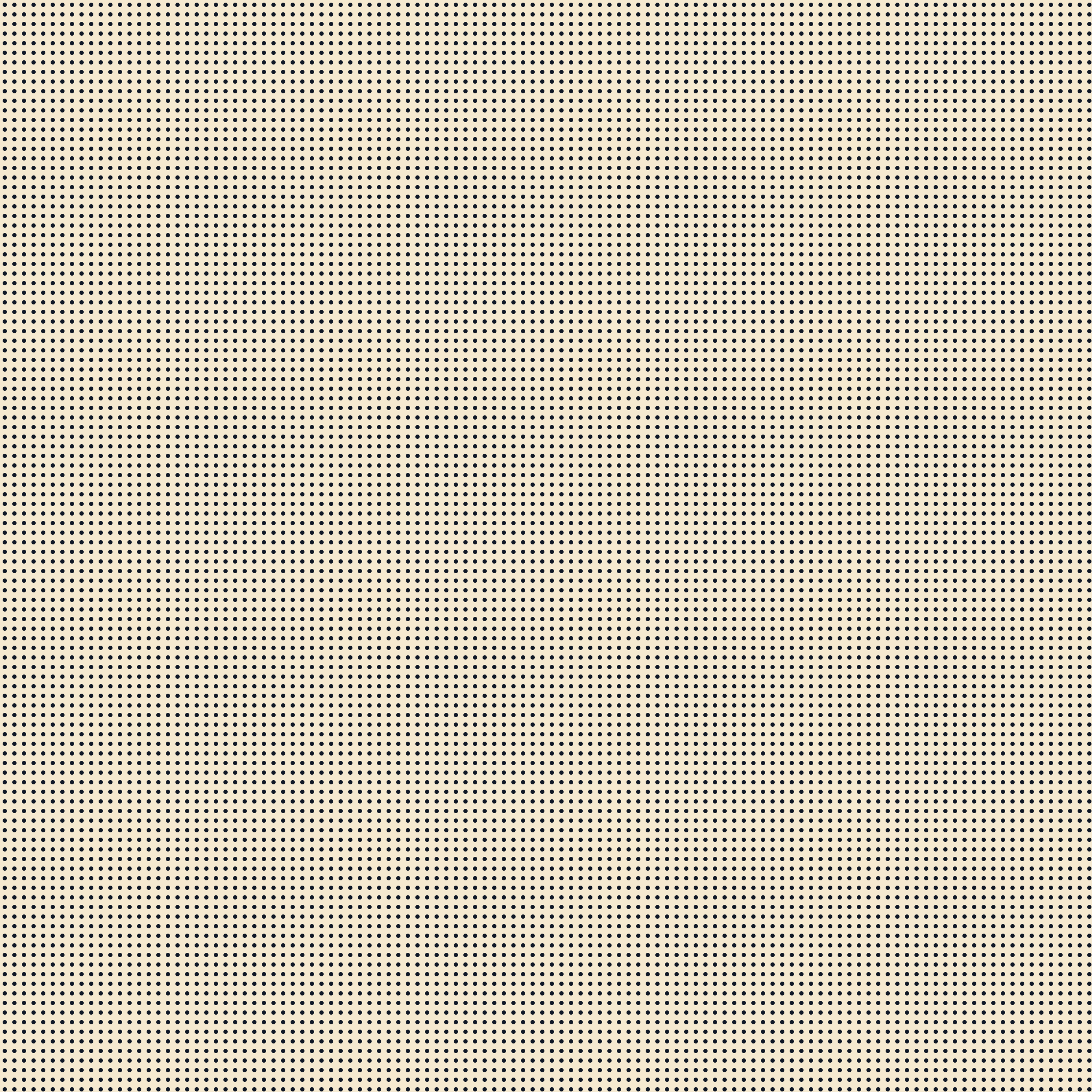
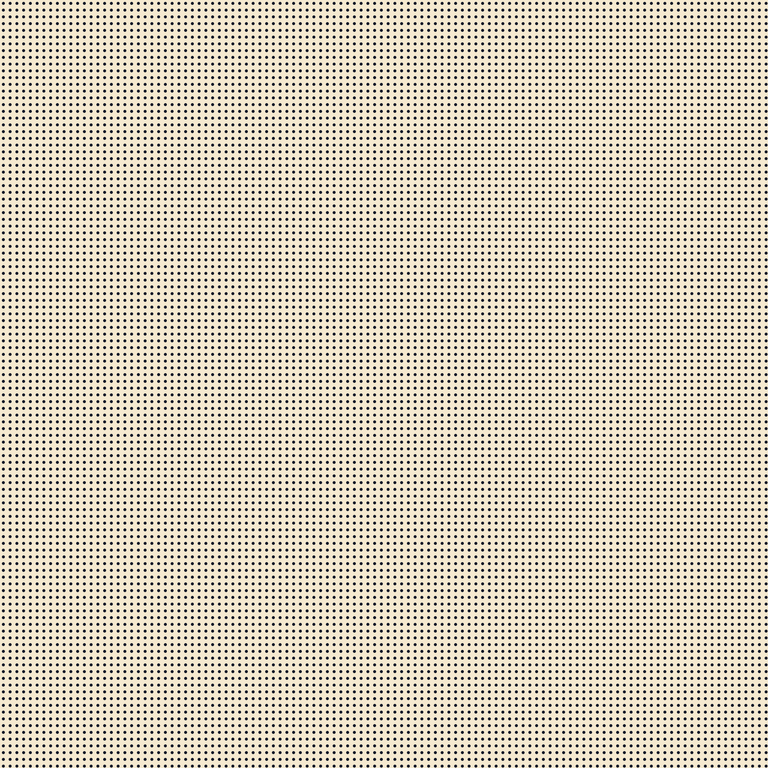 Round dots
Ready-to-place raster texture with known dimensions.
2048 × 2048 px · Cream background
PNG: 115.3 KiB
18 px spacing · 16% geometric coverage
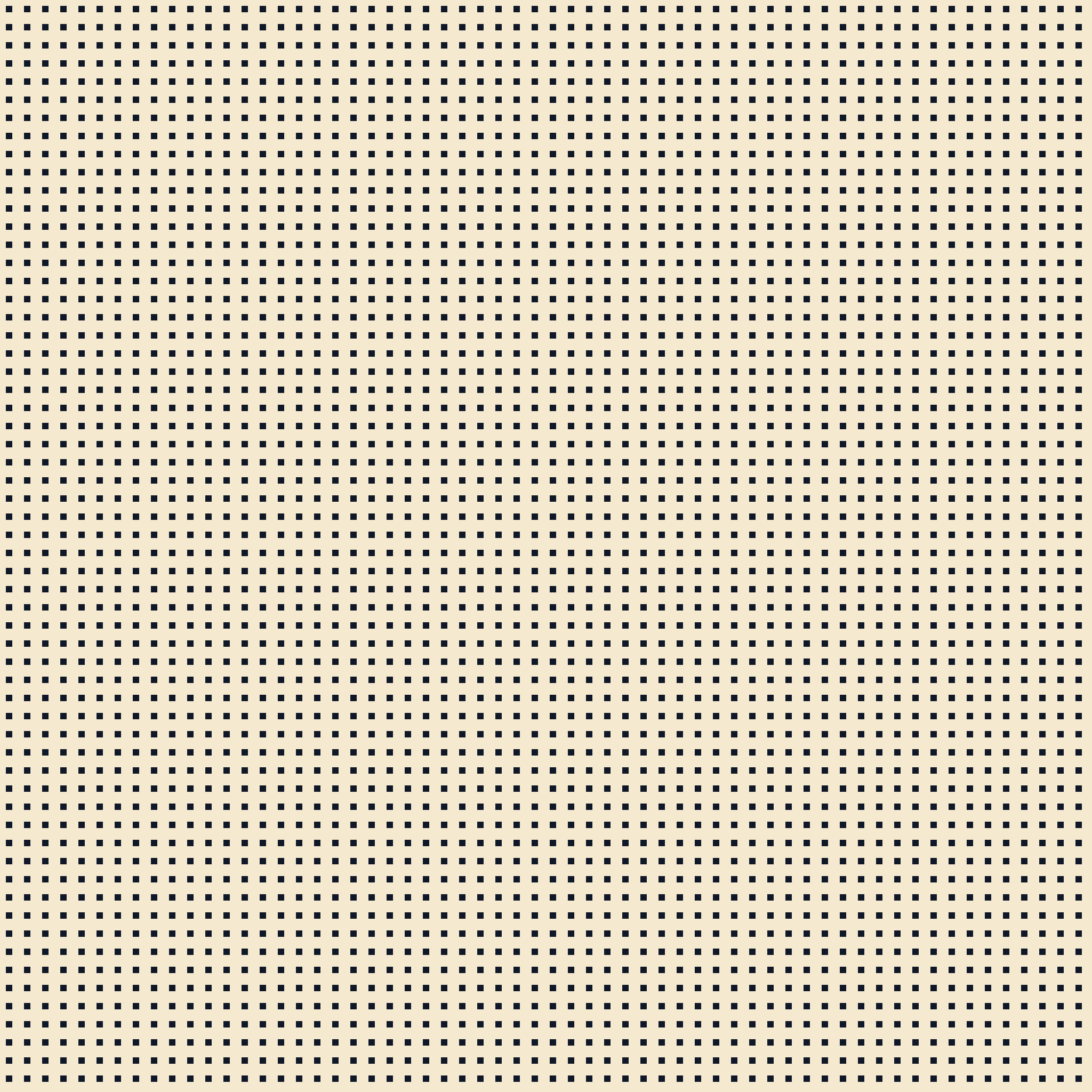
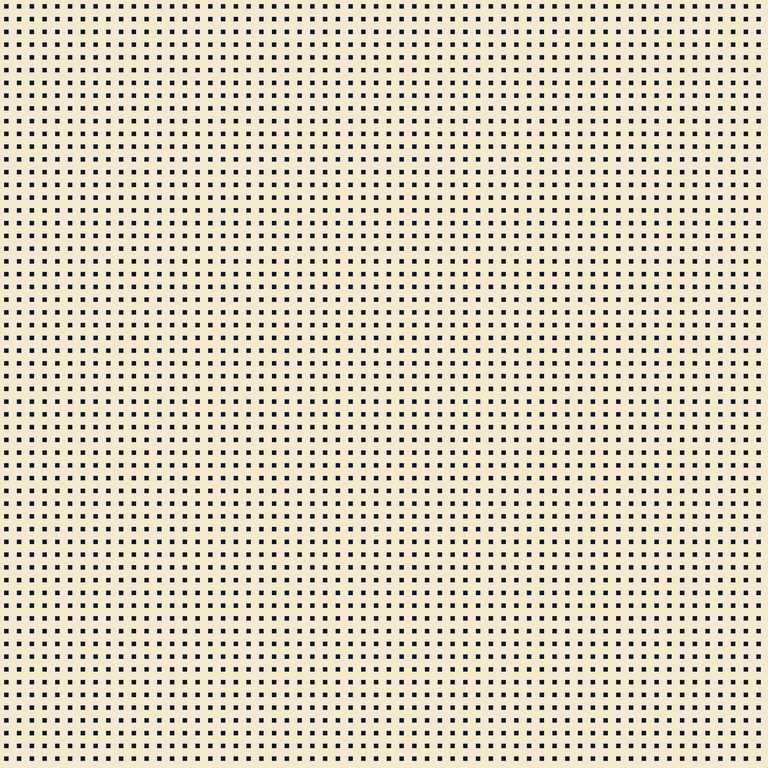 Square
Ready-to-place raster texture with known dimensions.
2048 × 2048 px · Cream background
PNG: 103.3 KiB
34 px spacing · 12% geometric coverage
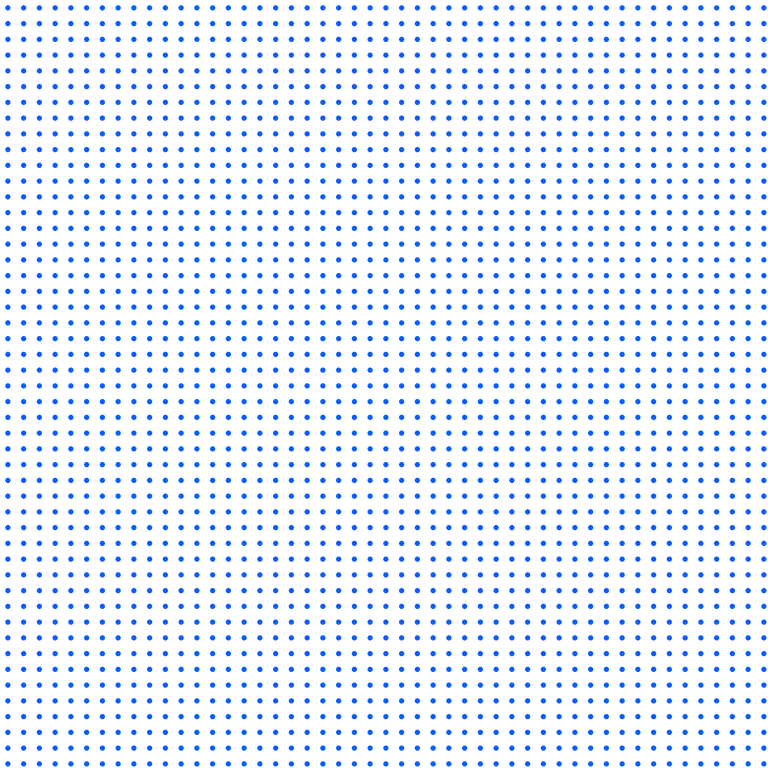 Round dots
Ready-to-place raster texture with known dimensions.
2048 × 2048 px · Transparent
PNG: 60.4 KiB
42 px spacing · 9% geometric coverage
 Square
Ready-to-place raster texture with known dimensions.
2048 × 2048 px · Transparent
PNG: 60.3 KiB
26 px spacing · 15% geometric coverage
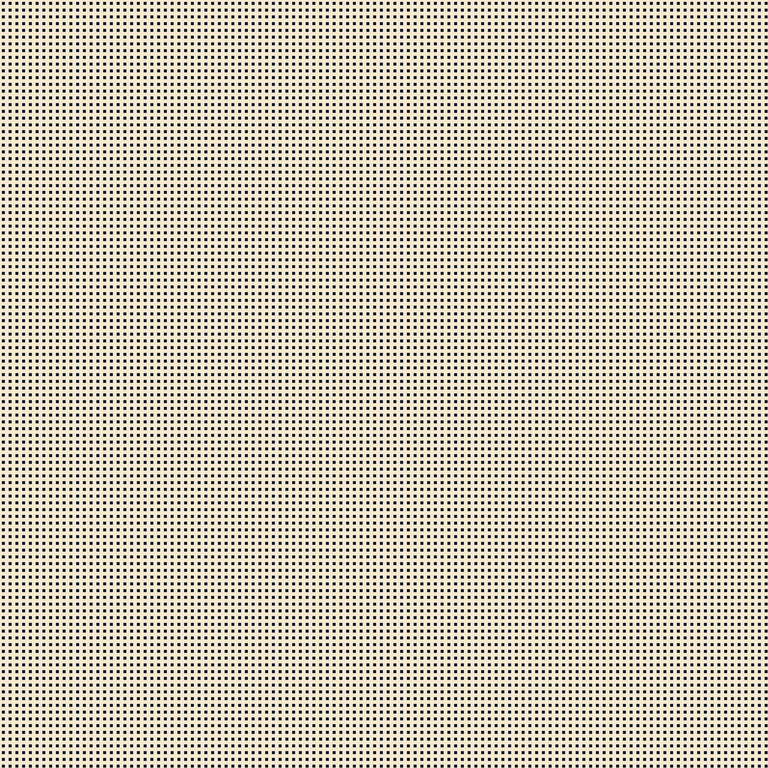 Square
Ready-to-place raster texture with known dimensions.
2048 × 2048 px · Cream background
PNG: 101.9 KiB
18 px spacing · 20% geometric coverage
Free for personal and commercial designs. Edit and combine the textures with your work; do not resell the unmodified pack. Read usage terms.
Facts from the actual exports · 2026-09-18
Byte counts come from the downloadable PNG files. Coverage is geometric and is not a physical print measurement.
| Dimensions | Distinct patterns | Transparent / opaque | PNG size range |
|---|---|---|---|
| 1024 × 1024 px | 8 | 4 / 4 | 12.8 KiB–33.5 KiB |
| 2048 × 2048 px | 8 | 4 / 4 | 53.9 KiB–115.3 KiB |
Example: Round dots · 26 px uses 26 px spacing · 10 marks, with approximately 12% geometric coverage. The file size and dimensions on each card follow the chosen download.
The useful part
This halftone PNG collection is for choosing a ready-to-place raster file. You do not need to upload an image or build a pattern first. Select a pixel size, choose whether the background should be transparent, and download the file shown on the card. This is useful when a design brief already specifies the format, or when the next step is importing a texture into an existing layout.
The collection contains eight distinct patterns, each supplied at two dimensions. A 1024-pixel version and a 2048-pixel version of the same pattern are size options, not two unrelated designs. Four patterns have transparent backgrounds; four use charcoal marks on cream. Shapes include circles and squares. The filters and file facts describe those exports rather than promising every possible combination of color, shape, and background.
The useful part
Choose 1024 by 1024 pixels for a smaller texture area when that resolution is enough for the destination. Choose 2048 by 2048 when the file must cover a larger area or when you want room to crop. The larger file contains four times as many pixels, but its compressed size is not necessarily four times larger. Repeated shapes compress efficiently, so use the actual size shown on the card.
The selector changes the download to a real file at the chosen resolution. It also updates the dimensions and file size beside the button. The complete pack includes both sizes, so you can save the set and decide later. If you only need one texture, downloading it individually avoids collecting alternatives you will not use.
The useful part
Both sizes use the same mark diameter and grid spacing in source pixels. The 2048-pixel sheet therefore contains more repeats of the pattern than the 1024-pixel sheet. It is a larger texture field, not a simple enlargement of the smaller raster. For example, a 26-pixel grid keeps that spacing in both exports; there are more cells across the wider sheet.
This means the dots can appear smaller if you fit the larger sheet into the same display area as the smaller one. Choose a file based on both the required resolution and the scale of the texture you want. When a precise dot size matters, place the file at a known scale in your editor and inspect it there. The dimension selector should help you choose the file, not hide this difference.
The useful part
A transparent halftone PNG contains colored marks and clear space between them. Place it above artwork when the underlying image or color should remain visible. The checkerboard in the preview is a viewing aid and is not included in the export. In this collection, transparent files use blue marks; the black and white layering options are available on the overlay page.
A cream-background PNG is an opaque surface containing both marks and the background color. It works when the texture itself should fill a region of the design. Placing it over a photograph will cover the photograph in that region. Choose the background deliberately: lowering opacity on a cream-backed file also fades its backing, which behaves differently from using a transparent texture.
The useful part
The width and height are pixel dimensions read from the generated export. The download size is the actual PNG byte count expressed in KiB. Spacing is the distance between repeating grid-cell centers in source pixels. Ink coverage is calculated from the mark area within a cell, rounded to the nearest whole percent. These values describe different properties and should not be treated as interchangeable quality scores.
A file with a smaller byte count is not automatically lower resolution, and a file with more pixels is not automatically a bolder texture. Background, repetition, and edge complexity influence compression. Use the card preview to choose the appearance, the dimensions to fit the layout, and the file size when storage or transfer size matters. The file facts table below provides a compact view of the available variants.
The useful part
Import the PNG into your design application as a separate image layer. Preserve its aspect ratio so circles stay circular and square marks retain their proportions. Crop the sheet to the intended region when necessary. If you need a long banner, test whether one scaled sheet gives the right dot size before filling the whole banner with repeated copies.
Check small marks at one hundred percent, then check the finished composition at its intended viewing size. Downscaling can soften individual dots or create temporary bands in a preview. Avoid repeated cycles of shrinking and enlarging the same raster. Return to the original download when you need a different placement, or use the vector files in the Dots collection when editable geometry is the priority.
The useful part
Use the homepage generator when you want a portrait, illustration, or logo converted into image-based halftone. These downloadable PNGs are uniform textures; their marks do not change according to the brightness of your source photo. Use the overlay page when your main question is how a dark or white dot layer will look over an existing image.
Use the pattern maker when you need a seamless tile or want to set your own colors and spacing. The full-size sheets here may end partway through a grid cell, so repeating the sheet is not guaranteed to hide the joins. A PNG format label does not imply seamlessness, vector editability, or suitability for a particular physical printing process. Choose the workflow based on the job you need to finish.
The useful part
The full pack includes sixteen PNG files: eight distinct patterns at 1024 and 2048 pixels. Matching SVG files and usage terms are included as well. Individual downloads follow the size currently selected on the page. Keep the originals alongside an editable project if you expect to revisit the design or prepare another output size.
The textures may be used in personal and commercial designs, modified, and combined with your artwork. Do not resell the unmodified pack as a standalone product. Page previews use WebP to display the artwork, while the download links deliver PNG files at the selected dimensions. If you need a different task next, the comparison links take you to the shape-focused Dots library or the photo-based Overlay preview.